Several Days of Stream Dropping Network Frames

DreadSurmise

New Member
Hello,

Here's is the log of one of my many OBS tests. I normally have been able to stream at 2K with no issues, but the past few days both myself and my wife's PC's have been dropping 50% or more frames even when just streaming the desktop.

We are on a wired gigabit internet connection with 50+ mpbs upload speed on brand new cables, we both have 5070tis, and though we have HAGS enabled, I already tried turning it off and on and no change. The stats dock says all frames are lost from the network.

I don't know what to do, I'm at my wit's end
 

Attachments

22:27:09.558: Output 'rtmp multitrack video': Number of dropped frames due to insufficient bandwidth/connection stalls: 10693 (59.6%)

Over the years, reports of issues with the multi output plugin(s) have been present.
So... first thing I'd suggest is testing without multi-streaming/that plugin

Then, what are you doing to real-time monitor your LAN and WAN? in my experience, folks often don't know what traffic is actually happening on their network, and there are any number of causes (from' oops., I forgot about that background sync task, or a setting changed unexpectedly, etc, to malware)
With 2 different PCs showing same issue, I start with basic troubleshooting - either you aren't getting the bandwidth you expect, OR something else is consuming it... OR, something on PCs interfering with using that bandwidth
- Have you tried a large file upload to well-known target that can handle consistently high-volume input, and tested throughput? ie upload multiGB file and monitor detail throughput?

Mind you a typical speedtest (ex Ookla) test for typical throughput (dropping outlyers from the results) ... HOWEVER, streaming requires consistent throughput, jitter and latency (which most data traffic does not). so, very easy for folks to mis-interpret throughput test results
 
I don't use a plugin for multi-output, I'm only using the enhanced broadcasting with Twitch which is necessary to stream in 2K to my knowledge; however, when I turn it off, it does the same thing.

I have nothing to monitor my LAN and WAN, what would you recommend?

Something on the PCs must be interfering with or consuming the bandwidth, what would you recommend for testing this?

Ookla and other speed tests put my speed around 980 down and 50-60 up with low jitter and latency, nothing lags except OBS during the last few days, it was fine for months before on both PCs
 
22:33:15.249: Output 'rtmp multitrack video': Number of dropped frames due to insufficient bandwidth/connection stalls: 3842 (60.3%)
You're upload connection isn't good enough for the bandwidth needed. You may want to use the TwitchTest utility to verify your internet connection against Twitch servers. Please share the results in here (screenshot)

Also in the OBS Settings for the enhanced broadcasting untick auto and set only 3 tracks.
2026-07-29_173825.jpg
 
Aye, I will try it when I get home from work, but why was it fine for so long and then suddenly is unusable?

If anybody has any insight, so I can try to either become more knowledgeable or prevent it in the future please let me know.

My connection was worse months ago when I was streaming wireless but worked at 2K no problem on any game I tried, and now I have it wired after the issue started and the connection is about three times faster than it was, but still having issues somehow.
 
Dropped frames can only be caused by a failure in your internet connection or your networking hardware. They are not caused by OBS but OBS can help.

32.2 New Features
-Added dynamic bitrate support to multitrack video [lexano-ivs]

I don't even use multitrack but I see that as a real game changer. Shout out to lexano-ivs for that.

You can enable it by going to Settings > Advanced > Network > Check the box for "Dynamically change bitrate..." [Apply] [OK]. Do that before you start streaming.

If you haven't done so already, try the ol' 5 minute static discharge on your network equipment. Disconnect power, wait 5 minutes, connect power to first device in network chain, wait 5 minutes, connect power to second device(s) in network chaing, wait 5 minutes, repeat as needed.
 
Here's my Ookla from tonight and here's my Twitch Test. It says quality 0.

I've tried with limiting video tracks on dynamic bitrate but that didn't work. Using dyanmic bitrate during testing did result in no dropped frames, but the quality was still so bad, I might as well not even try.

I just want to know what happened. I was getting solid 23,000 kbps bitrate for months and on Saturday everything started going haywire in my network.

I just don't believe that all of a sudden with no changes my entire operation can explode like this and I need to fiddle with settings in just the right way to get it to function. It was working perfect, and now my connection is even better than before, and still nothing is working.

What could it possibly be?
 

Attachments

  • zen_Pgyv7GFm0C.png
    zen_Pgyv7GFm0C.png
    18.3 KB · Views: 19
  • TwitchTest_8gQksOhMCy.png
    TwitchTest_8gQksOhMCy.png
    16.5 KB · Views: 18
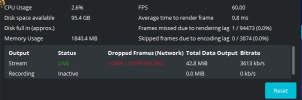
Here's the stats dock from my test tonight after power cycling everything, starting with the modem, then the router, then my PC, unplugging all network cables, and then plugging them back in in sequence after power was restored. Per instructions I waited 5 minutes before plugging back in each device
 

Attachments

  • obs64_eui9K4ue63.png
    obs64_eui9K4ue63.png
    12.8 KB · Views: 11
Anything below 90 quality is unusable for streaming. And zero, well...
There's no noticeable errors pointing to your side, so it may be your ISP with issues on the RTMP protocol (so the zero quality) and you need to contact them regarding this.
Do a test stream in Youtube and see if it works. If it do, your ISP may be blocking RTMP traffic to Twitch alone. If it don't work, then your ISP may be blocking or not redirecting correctly the RTMP protocol.
But, before you start a fight with your ISP, double check the modem/router is working fine, change the port where the network cable connects to it, turn it off and wait 5 minutes before turn it on again. Make sure the network cable isn't damaged. Make sure the network adapter driver is up to date. make sure you didn't blocked OBS on the firewall, or the RTMP protocol itself in the computer and router/modem. All this is to avoid doing it when you call the ISP, the most probable culprit.
50Mbps is too low, so you may want to stay on no more than 3 streaming tracks. The configuration provided by Twitch may only provide a max resolution of 1080p if it detects not enough bandwidth to accommodate more streams.
Speedtests on the internet don't measure the RTMP protocol, so this are useless for your purpose.
 
Spot on comments regarding that Twitch test indicating WAN link is wholly unsuitable, though basic LAN troubleshooting before asking for ISP assistance is called for, as mentioned

A router/gateway update at your house? A change of settings? or an ISP routing/filtering change could all explain why it was fine, and no isn't

If Operating System has 3rd party security software, configured same/similar, and a change happened there, that could explain twitch results being that bad on 2 PCs on same LAN. Though, something at router or upstream (ISP) being more common (but depends on your security s/w setup)

50Mbps is too low,
Uh, that is an overly broad conclusion... my experience contradicts that. BUT ... granted, depends on ISP, target, and more.
a decent 50mb/s upload for a 2K (23k bitrate) stream sounds like plenty, assuming user is attentive to all (and appropriately limits) other WAN upload traffic that could conflict. In my experience, it takes a fairly high upload bandwidth rate (and associated subscription cost) to reach the point of allowing users who pay no attention to 'get away with being clueless'.

It is users choice whether to pay enough (if available, coax cable modem residential ISPs in US often don't even offering such high upload bandwidth rates for residential class service) to usually (no guarantees) be able to stream blissfully indifferent to other WAN link traffic, or, learn how to do some basic monitoring....

Speedtests on the internet don't measure the RTMP protocol, so this are useless for your purpose.
so true
 
A router/gateway update at your house? A change of settings? or an ISP routing/filtering change could all explain why it was fine, and no isn't

If Operating System has 3rd party security software, configured same/similar, and a change happened there, that could explain twitch results being that bad on 2 PCs on same LAN. Though, something at router or upstream (ISP) being more common (but depends on your security s/w setup)
I'm only using Windows Defender with OBS as an exception through it, no third party security software to my knowledge.

No router/gateway change at my house. In fact, my router was in the other room while I was streaming 2K over Wifi (I know, I know, but it worked for so long and I was lazy) happily for months until this issue started, whereupon I moved the modem and router into the same room as the PCs and got new ethernet cables but nothing got better despite the connection and latency being reduced.

In fact, I was running whatever the automatic enhanced broadcasting had for tracks OVER the Wifi streaming 2K with 0 issues for a long time. So my upload speed is definitely enough, it's not that. I had solid 23,000 kbps bitrate the whole time. I also only pay $80 a month for my internet.

At this point I'm convinced that it's my ISP. How else could it go from perfect to 0% quality overnight otherwise with no settings or hardware changes?
In my experience, it takes a fairly high upload bandwidth rate (and associated subscription cost) to reach the point of allowing users who pay no attention to 'get away with being clueless'.

It is users choice whether to pay enough (if available, coax cable modem residential ISPs in US often don't even offering such high upload bandwidth rates for residential class service) to usually (no guarantees) be able to stream blissfully indifferent to other WAN link traffic, or, learn how to do some basic monitoring....

I asked earlier to learn or for tips on learning anything I'm ignorant on. I'd love to learn whatever monitoring is necessary; but it's just myself and my wife in our house and my security on my network is pretty good (password is very long and ludicrously random), so I'm not sure what traffic might be on there that would be clogging anything.

 
Like PaiSand said, you need to try another streaming provider and you can still stream to twitch. Get a free Restream account, connect your twitch account in Restream and then connect your Restream account in OBS.
 
Last edited:
Do a test stream in Youtube and see if it works. If it do, your ISP may be blocking RTMP traffic to Twitch alone. If it don't work, then your ISP may be blocking or not redirecting correctly the RTMP protocol.
So I wasn't able to do a stream to Youtube since it requires a wait time of 24 hours after requesting access to do it.

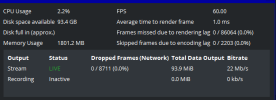
But my stream started working again inexplicably; but I need your guys' help to make it explicable as I am not as savvy with the log.

Can somebody look at this new log now that it's working and tell me what's different? I'm certain its my ISP, in which case I'll have to yell at them or something to get it to not happen again.

Just to be clear, I have changed nothing. My settings are higher quality than even before.
 

Attachments

  • 2026-07-31 01-02-32.txt
    2026-07-31 01-02-32.txt
    52.4 KB · Views: 22
  • TwitchTest_97C5YjY10b.png
    TwitchTest_97C5YjY10b.png
    18.3 KB · Views: 20
  • zen_73l9xLNrI4.png
    zen_73l9xLNrI4.png
    11.6 KB · Views: 19
Last edited:
Most probably it's your ISP. Just call its support after doing all the troubleshooting in your side so you can tell them you already verified it's not on your side. And yes, this includes turn off and on the router/modem.
 
Most probably it's your ISP. Just call its support after doing all the troubleshooting in your side so you can tell them you already verified it's not on your side. And yes, this includes turn off and on the router/modem.

Do you or does anybody else have advice for approaching this conversation with them so they don’t deny they’re doing it and actually fix it?
 
I'm only using Windows Defender with OBS as an exception through it, no third party security software to my knowledge.
Typically, You do NOT need an exception to send streaming traffic. In general, traffic is blocked from getting to your PC, most Outbound traffic is unfiltered.

No router/gateway change at my house. In fact, my router was in the other room while I was streaming 2K over Wifi (I know, I know, but it worked for so long and I was lazy) happily for months until this issue started, whereupon I moved the modem and router into the same room as the PCs and got new ethernet cables but nothing got better despite the connection and latency being reduced.
Unless you have real-time Wifi & RF monitoring, you have no idea what sources of WiFi interference may be occurring. especially if you have neighbors. that WiFi worked before is largely irrelevant (unless you live in a rural area, your closest next door neighbors is more than many hundreds of yards/meter away, and you can NOT see any other WiFi SSIDs. And you know every signal WiFi client, and have them turned off while testing. ... the number of people who meet that criteria is exceptionally small. Every one - is foolish to make ANY assumptions (unless network engineer with real-time RF monitor tools operations and expertise in reading said tools output) about WiFi operation.
Hence you testing needs to be via Ethernet. Almost all other tests aren't worth the time/effort to perform, especially for network issues, and you have a massive blind spot in exactly the area you are trying to troublshoot

In fact, I was running whatever the automatic enhanced broadcasting had for tracks OVER the Wifi streaming 2K with 0 issues for a long time. So my upload speed is definitely enough, it's not that. I had solid 23,000 kbps bitrate the whole time. I also only pay $80 a month for my internet.
If you have ever driven in an urban area, you know that saying "but I can normally drive to work (or wherever in X amount of time)" does not mean that an accident, construction, or similar won't change things. The difference is you can see those obstructions/congestion. Such visibility is a challenge for Internet traffic, but similar traffic issues arise... it is just that aside from streaming traffic, most data download traffic has buffers built-in to mask jitter, latency, etc.

At this point I'm convinced that it's my ISP. How else could it go from perfect to 0% quality overnight otherwise with no settings or hardware changes?
That conclusion is based on an assumption about what is happening on your LAN that is NOT grounded in knowledge, but just hope. And that doesn't count for anything in technical troubleshooting, especially when having conversation with ISP
I could rattle off MANY circumstances that could cause a change in traffic behavior having nothing to do with your ISP. That doesn't mean the ISP isn't your issue, but assuming they are is not a good idea.
I asked earlier to learn or for tips on learning anything I'm ignorant on. I'd love to learn whatever monitoring is necessary; but it's just myself and my wife in our house and my security on my network is pretty good (password is very long and ludicrously random), so I'm not sure what traffic might be on there that would be clogging anything.
 
Do you or does anybody else have advice for approaching this conversation with them so they don’t deny they’re doing it and actually fix it?
1. You could call, and ask if ISP if they have any known maintenance or routing issues impacting Twitch traffic?
if ISP doesn't acknowledge a known issue upfront, then
2. Start by doing streaming testing via Ethernet. otherwise your testing is next to worthless
Make sure every other network device (streaming TV, smart speakers, etc. I mean EVERYTHING) is turned off.. Or, you figure out how to do some real-time WAN traffic monitoring to KNOW (not assume) what traffic is on your LAN. With some routers this is easy, others not so much. it depends.

Understand the comments about why SpeedTest is not all that meaningful for streaming, and something like TwitchTest is WAY more applicable.

I ran large file upload tests (not streaming) to multiple different destinations to get a sense of sustained upload throughput. Then try stream test to different content delivery networks (CDNs... ie YouTube, etc). If streaming to YouTube works fine and Twitch doesn't, then first thing is to make sure your stream settings are correct (they can and do change over time) and are different between each CDN. Once settings confirmed, and you have an issue with a specific destination, then that is something you can go to ISP with.
If streaming to ANY destination is a problem, then for troubleshooting that will get ISP attention (prevent you getting blown off), you need to try another ISP (usually means moving computer to different site with different ISP). This is to confirm PC isn't an issue. Then take alternate known good PC working at another location and bring to your place and test via Ethernet (while knowing, not assuming about other traffic on LAN). With that data, your ISP will know you have done your homework, and isolated/identified a likely root cause.

My $0.02
 
Lawrence, I appreciate your reply and willingness to help, but the way you talk to me makes you seem like you think I am an imbecile because this isn't my dedicated field of expertise. Where I come from, grown men don't talk to one another that way.

Anybody else have anything to contribute that's more helpful?
 
Back
Top